




User guide

Home Inventory

Know what you have, where it is, and what is out.

Get the app on Google Play

Android 8.0 or later. The app is in a closed test. Send your Gmail address to join.

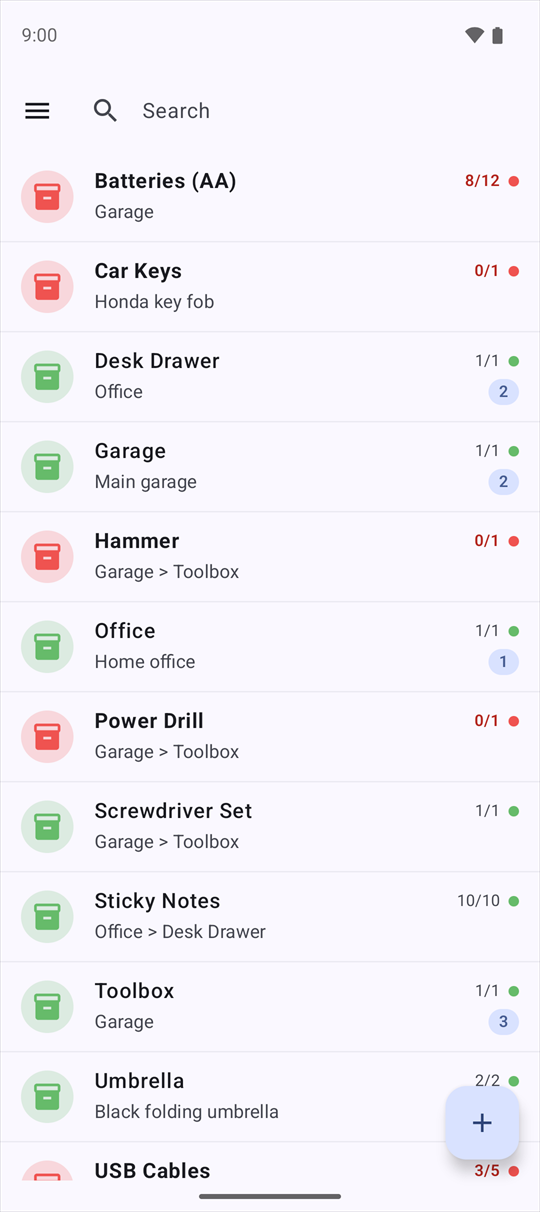
The main list. Each row shows an item, where it is, and how many are in place. Red rows have something out.

How it works

Swipe a row

Drag until the icon is solid, then let go. Let go early to cancel.

1 finger ←Take one outIn place −1. The row turns red.
1 finger →Put one backIn place +1. Green when all are back.
2 fingers ←Used up, broken or lostBoth numbers −1. The color does not change.
2 fingers →Bought moreBoth numbers +1. The color does not change.
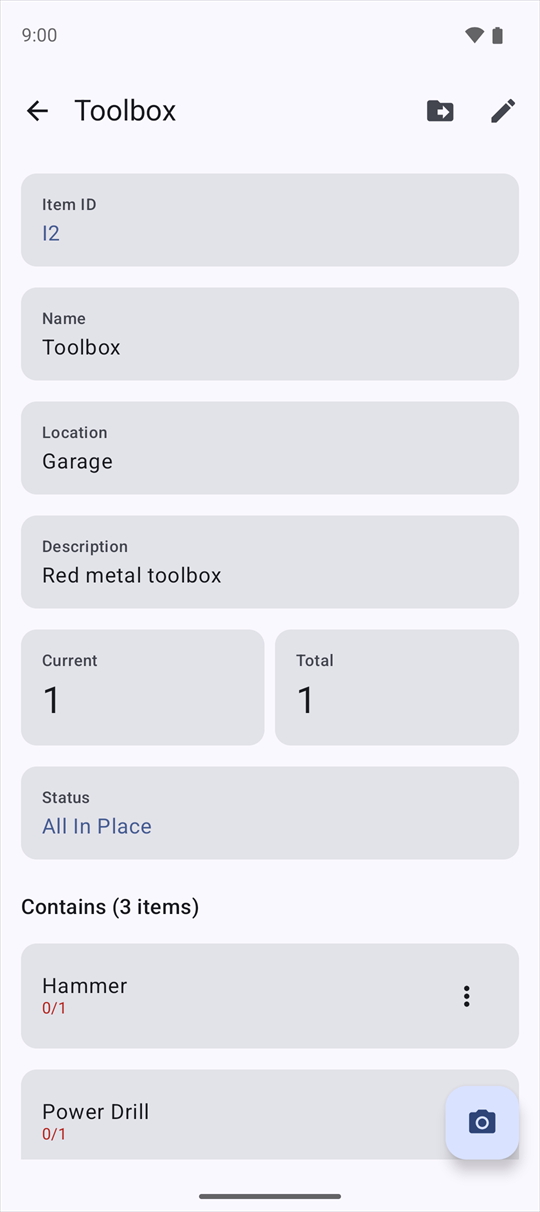
The item screen of Toolbox: its location, quantities, status, and the 3 items it contains.
Touch Open the item
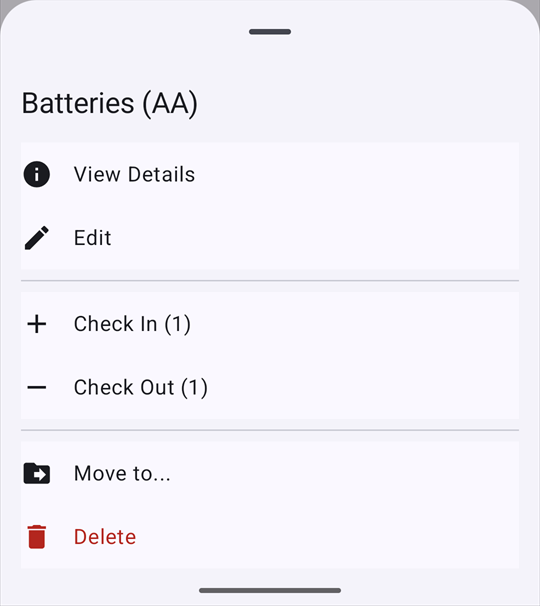
The quick menu: View Details, Edit, Check In, Check Out, Move to, Delete.
Touch and hold Quick menu

Read a row

Power Drill, in Garage, Toolbox. 0 of 1 in place. Red. 12345
Toolbox, in Garage. 1 of 1 in place. Green. Contains 3 items. 6
  1. Photo, or a box in the status color
  2. Name. Bold when something is out
  3. Where it is: the last two levels
  4. In place / total
  5. Status: red or green
  6. Number of items inside

Learn by doing

Set up your home

Day 1 · 5 minutes

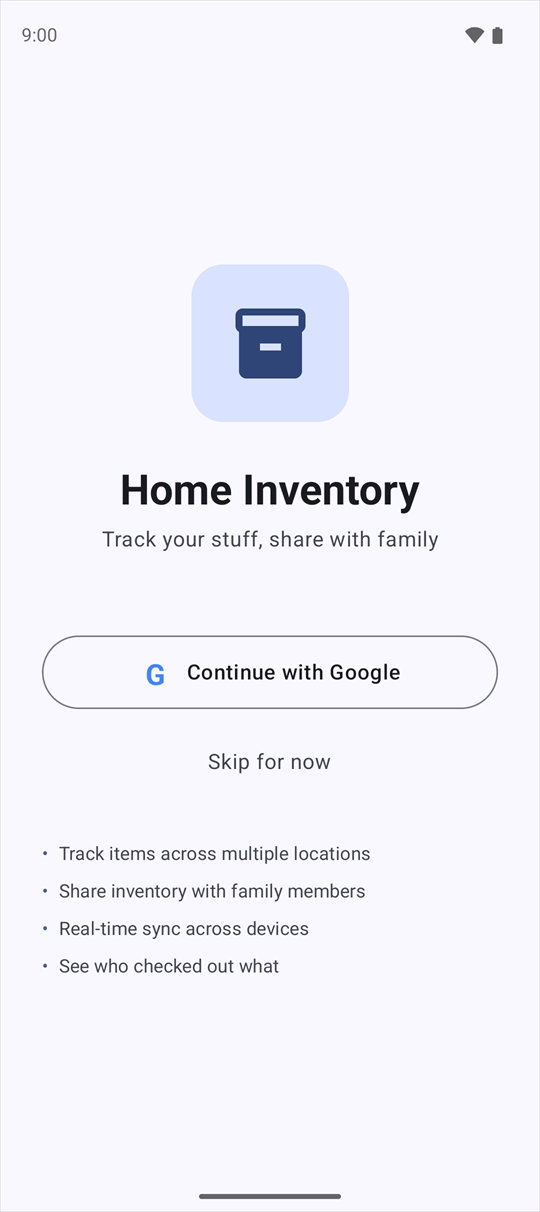
  1. Start screen with Continue with Google and Skip for now.

    Open the app. Sign in with Google, or touch Skip for now.

    Sign-in is only for sync. If you skip, the app asks again at the next start.

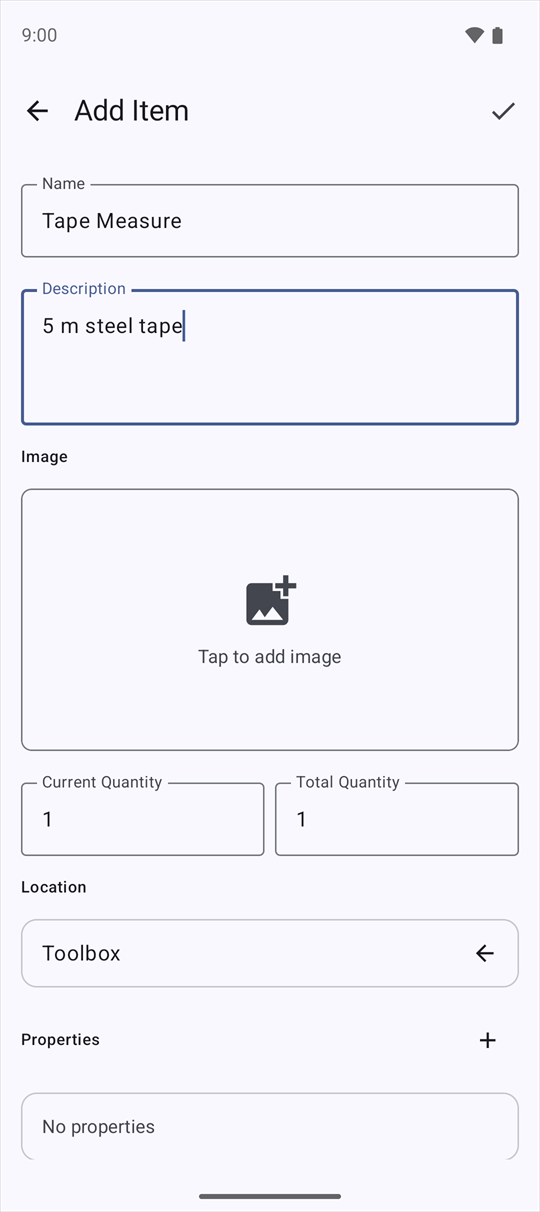
  2. Add Item screen with name Tape Measure and location Toolbox.

    Touch and add your rooms. Touch to save.

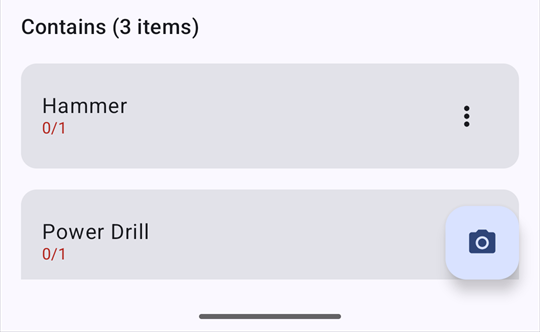
  3. Bottom of an item screen: the Contains list and the camera button.

    Open a room. Touch and photograph each thing in it. Type a name, touch .

    The room is set as the location for you.
The drill goes to work

Every day · 3 seconds

  1. Power Drill 0 of 1, red.

    You take the drill. Swipe it left. Red: it is out.

  2. Power Drill 1 of 1, green.

    You put it back. Swipe it right. Green: it is home.

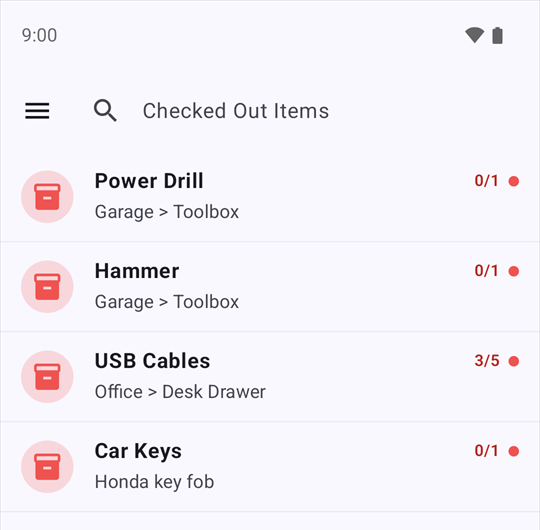
  3. Touch then Checked Out Items. You see all that is still out.

    To see all items again: then Search.

Checked Out Items: Power Drill, Hammer, USB Cables 3 of 5, Car Keys.

Batteries: use some, buy more

Things you use up

  1. Batteries 12 of 12.↓Batteries 11 of 11.

    You use one. Swipe left with 2 fingers. It stays green: none are missing, you own one less.

  2. Edit Item fields: Current Quantity 36, Total Quantity 36.

    You buy a pack of 24. Open the item, touch , add 24 to both numbers, touch .

Where is the tape measure?

Find anything

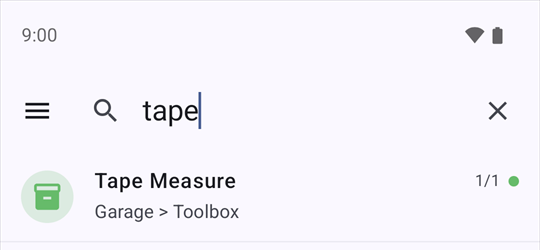
  1. Search for tape finds Tape Measure in Garage, Toolbox.

    Type a part of the name. The second line tells you where it is.

    Search also finds words in descriptions and properties.

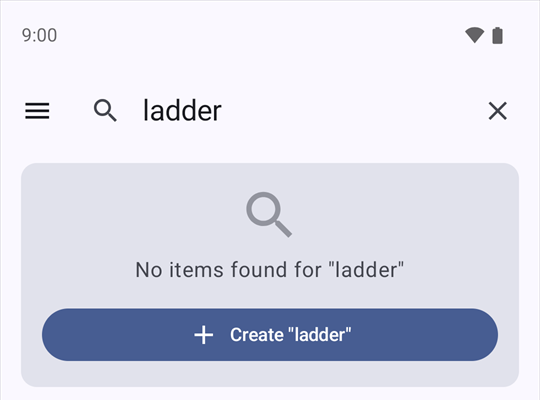
  2. No items found for ladder, with a Create ladder button.

    Not there? Touch Create to add it now.

Reorganize the garage

Things change place

  1. Open the item. Touch .

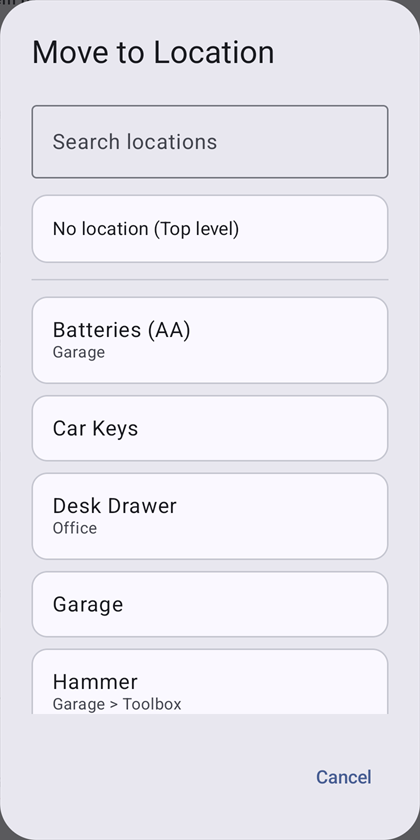
  2. Select the new place. All items inside move with it.

  3. To fill a box with many items: open the box, touch , then Assign Items.

Move to Location dialog with a search field and a list of places.

Keep a backup

Once a month

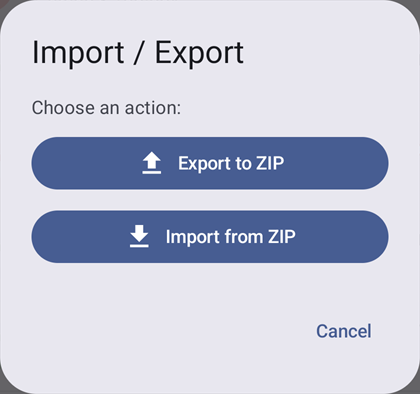
  1. Touch , Import / Export, Export to ZIP. Keep the file off the phone, for example on a computer.

  2. Import from ZIP adds and updates items. It never deletes.

Import / Export dialog with Export to ZIP and Import from ZIP.

Share with your family

One inventory, many phones · through Google Sheets

You, one time
  1. Google Sheets Sync, Export to Sheets
  2. Open in Sheets, then Share as Editor
Each family member, one time
  1. Google Sheets Sync. Paste the sheet link, touch Link Sheet
  2. Import from Sheets

Every time: Import→Change→Export

Export replaces the whole sheet. Export also puts photos in your Google Drive. Anyone with a photo link can see that photo.

Watch out

Get the app

Join the test on Google Play

Closed test: send your Gmail address first. Questions: arul.rajesh@gmail.com